¶ Warehouses
If there are multiple fulfillment centers in different regions of a country, or across different countries, multiple warehouses will need to be set up to batch out and ship orders from each fulfillment center.
¶ Warehouse
To configure and view a warehouse, navigate to Warehouses in the Freedom BackOffice.
Administration > Settings > Warehouse > Warehouses.
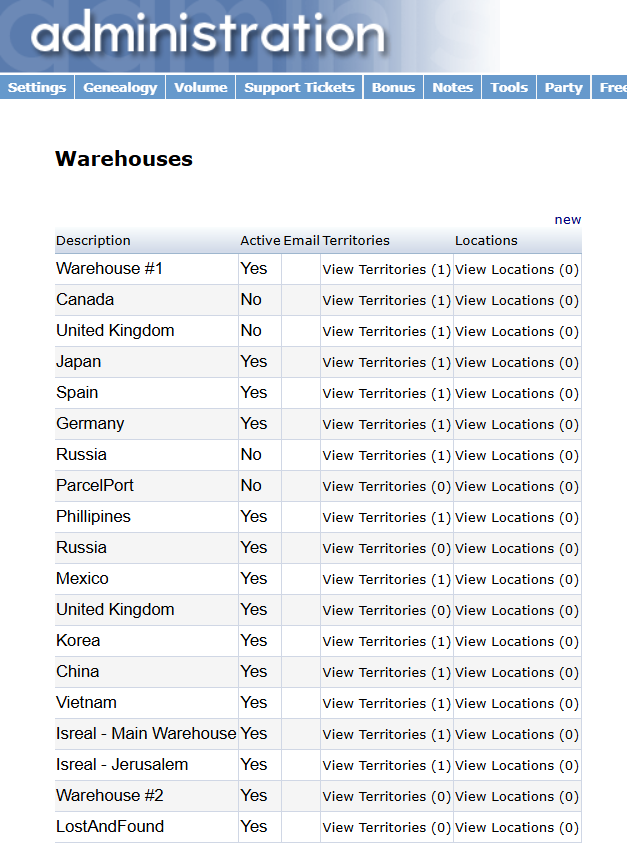
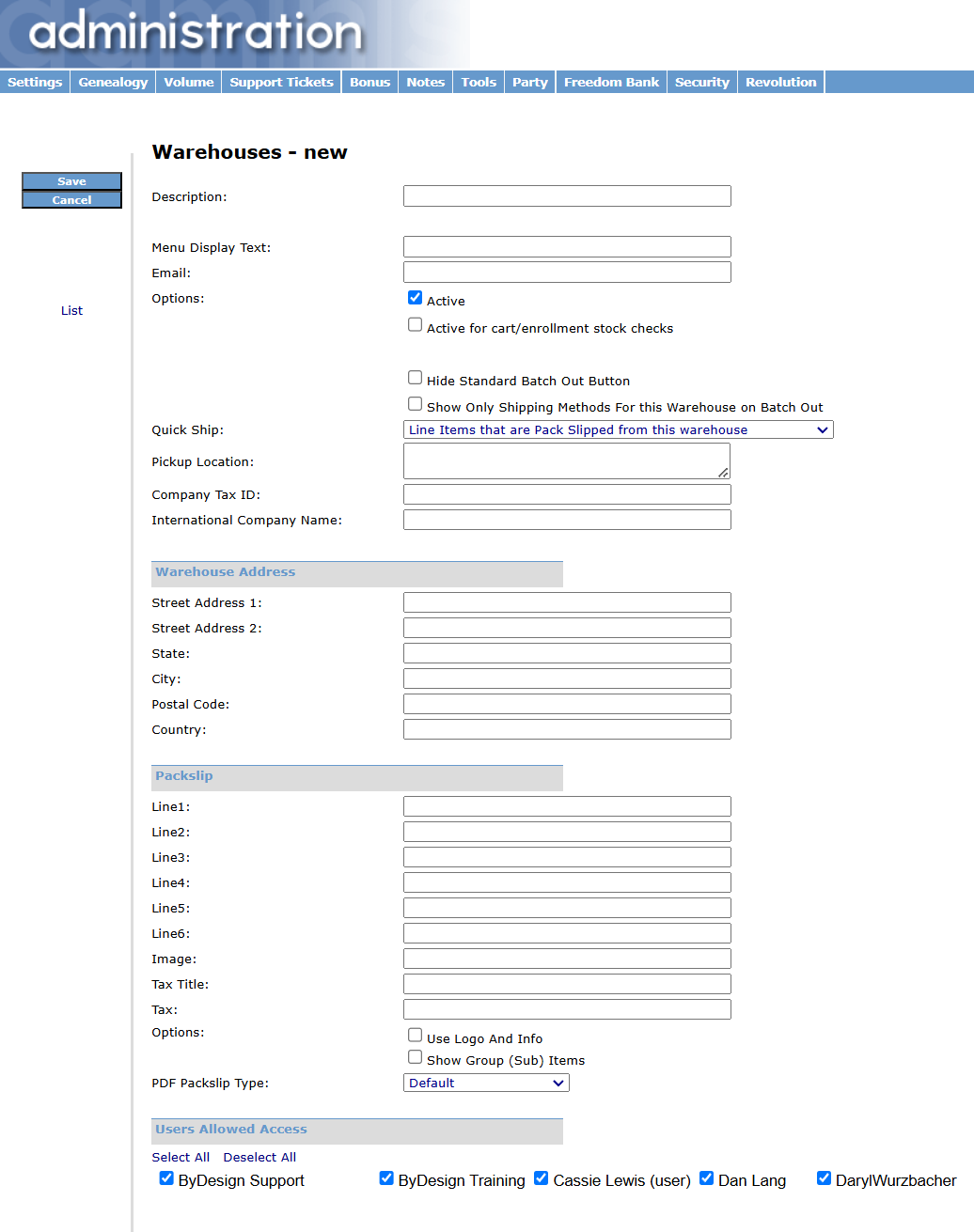
To create a new Warehouse, select new.
On the new Warehouse page, setup the base warehouse information: description, warehouse address, email, and any specific information needed for the packing slips.
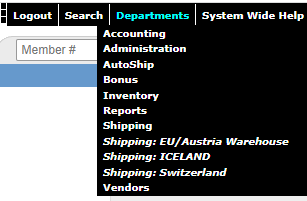
As the new warehouses are added, they will show in the global menu.
¶ Warehouse Territory
Administration > Settings > Warehouse > Warehouse Territories
Once a warehouse is created, you need to make it available to the countries that is services (the shipping address). You would need to add a line item for each country that a particular warehouse services. So, you would see many lines for a warehouse in Europe that services all of the countries in Europe.
¶ Configuring Inventory Warehouses
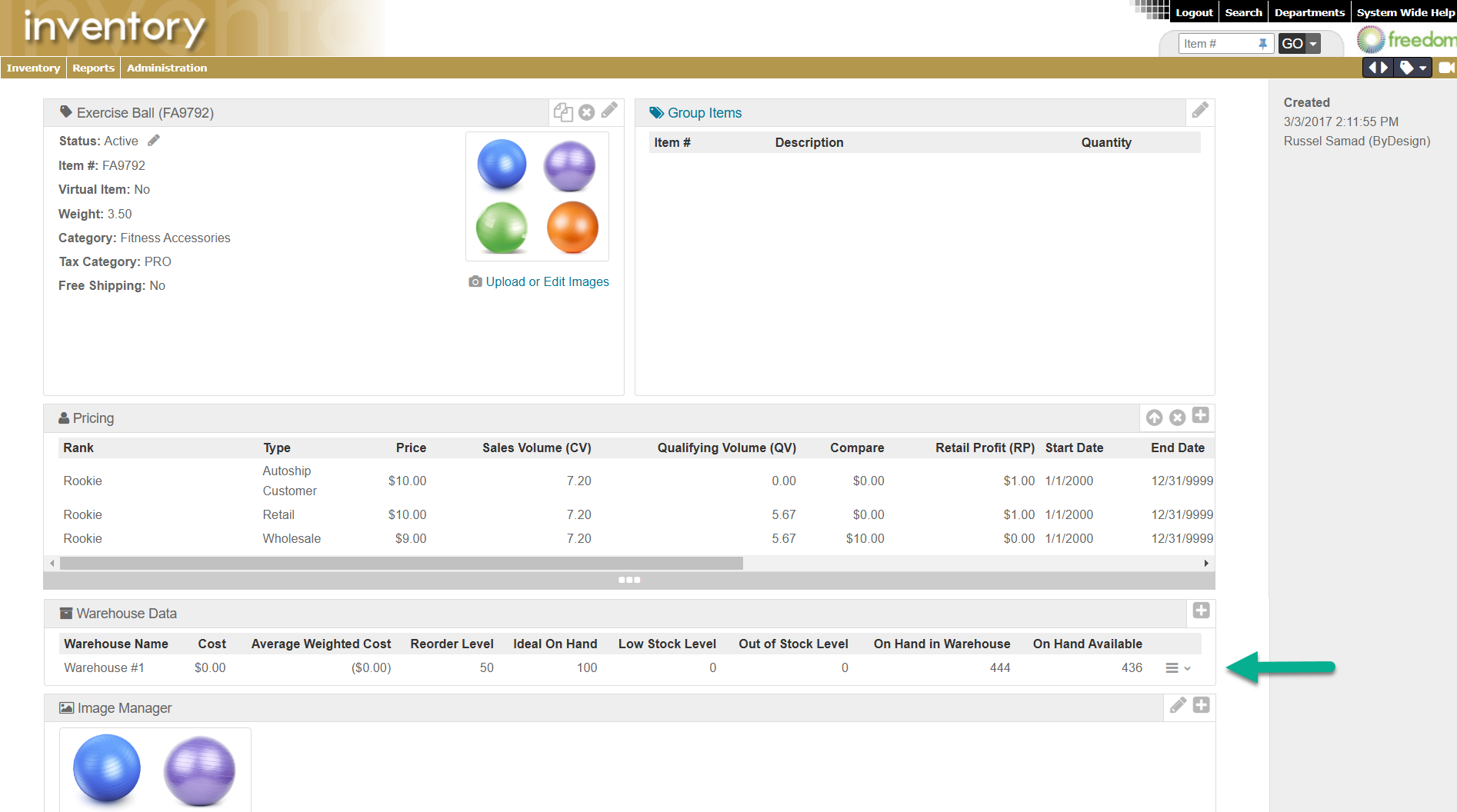
Adjusting the applicable warehouses on an item can be done in the Inventory Department of the Freedom BackOffice. Navigate to the item's Inventory Dashboard and scroll down to Warehouse Data.
¶ Add Warehouse
Select Add Warehouse at the top left of this section will allow you to add this inventory item to a warehouse.

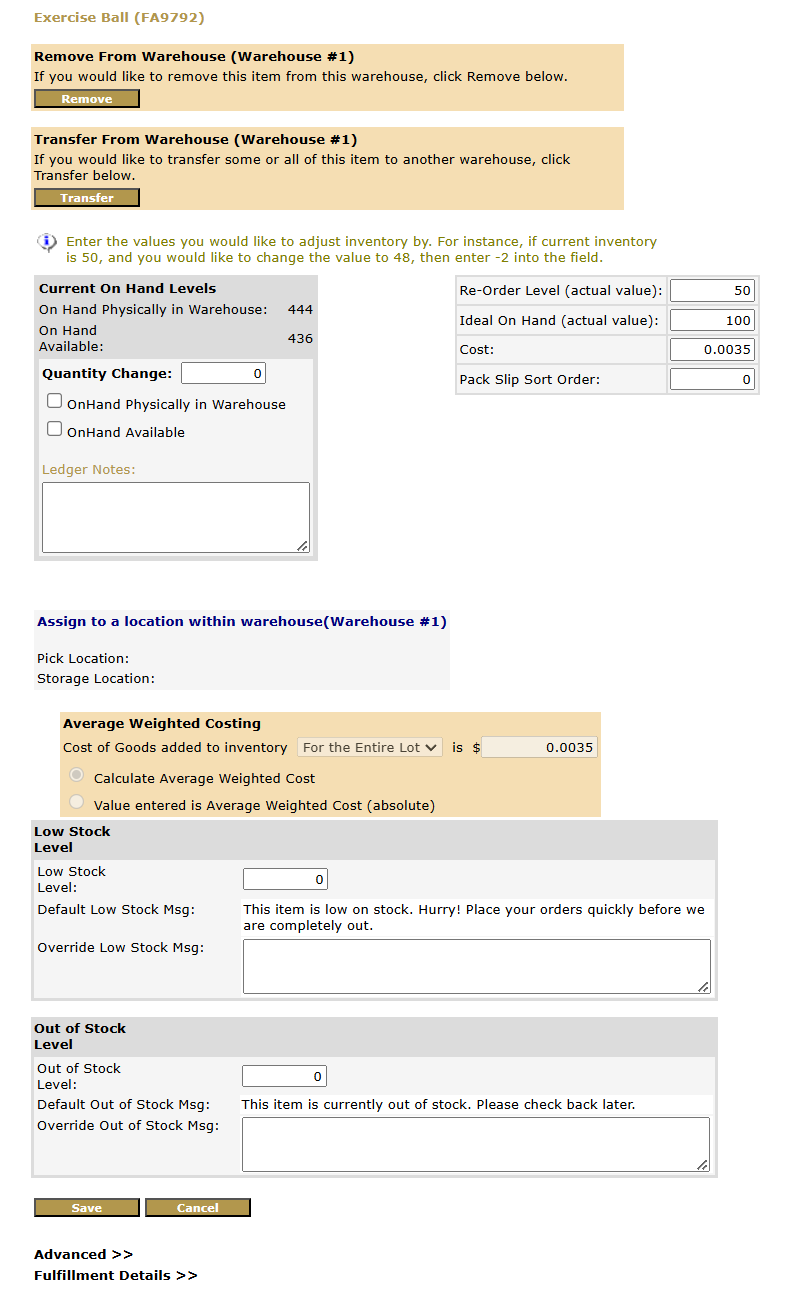
To edit the On Hand stock or view the ledger of warehouse updates on the inventory, select the hamburger stack on the associated warehouse.
¶ Edit On Hand
Select Edit On Hand from the hamburger stack to edit the inventory stock or transfer the item to a different warehouse.

On the Edit On Hand page, you may remove or transfer from the current warehouse, update the stock, edit the Re-Order or Ideal On Hand levels, and cost.