IMPORTANT: if you are installing this plugin prior to February 2021, please contact us before hand. We will need to push settings to your environment.
¶ Plugin Requirements:
- Your site must be setup to use Subdomain Replication
- Your site must use the Subdomain Replicated Plugin Version 2.3 or higher
¶ Plugin Highlights:
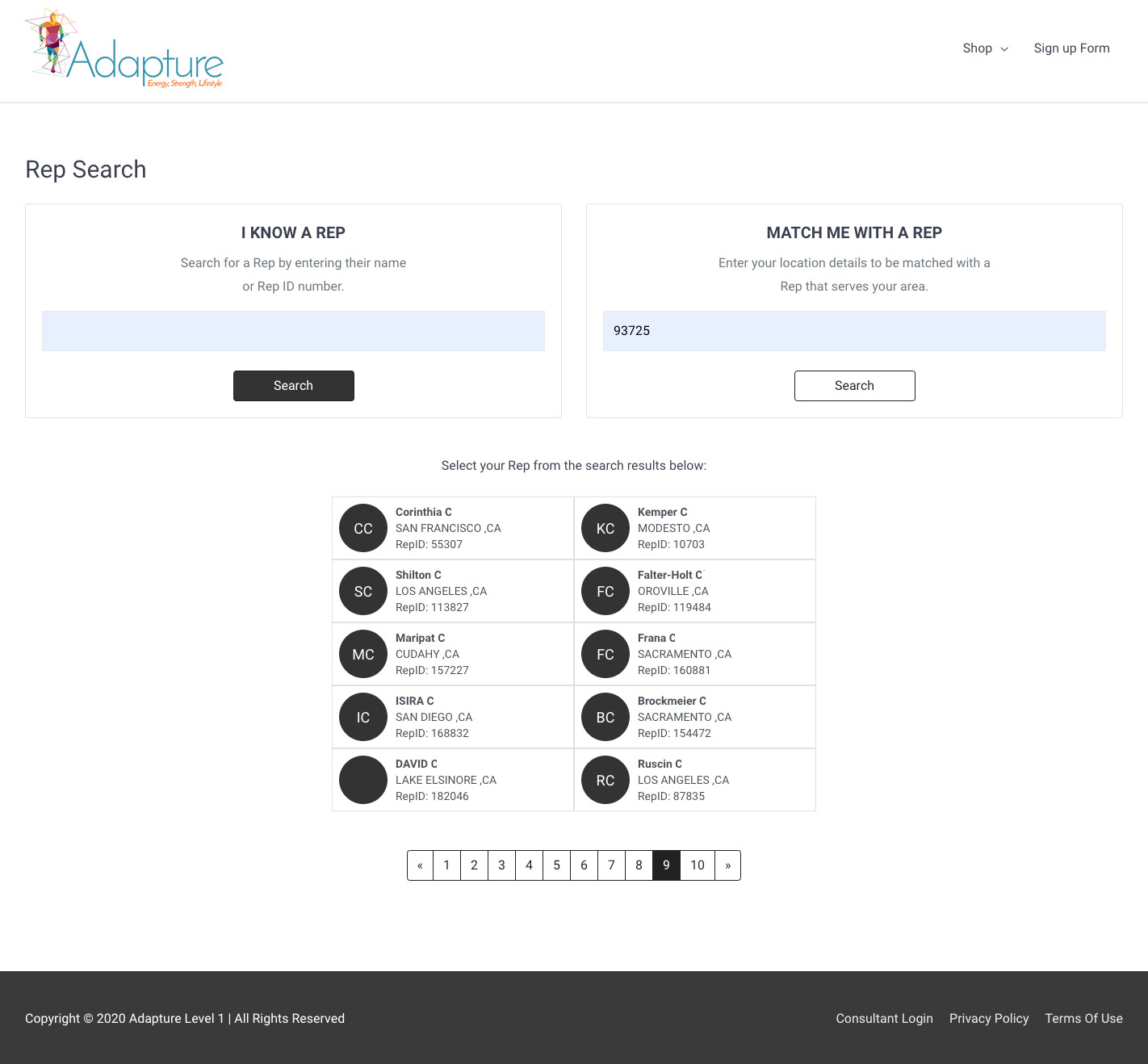
- Search by zip code, name, or Rep ID#
- Display between 1-100 search results
- Limit search results by Rank
- Upon user selection the site will replicated and redirect to the Reps About Me page.
¶ How To Install & Configure ByDesign’s Rep!Search Plugin
¶ Step 1
DOWNLOAD THE REP SEARCH PLUGIN (version 0.6)
¶ Step 2
Configure the following Freedom Settings:
- JSCART_REP_ASSIGNMENT_INUSE
- Set to Plugin Only or Both
- Setting the option to Both will also enable the Rep Assignment functionality on the Shopping Cart Customer Account Creation page.When configuring for Territory Settings, only the Country will be utilized.
- JSCART_REP_ASSIGNMENT_MIN_PAIDASRANK- Determines the minimum Paid As Rank to allow a Representative to be found and populated in the search results. This is based off the standard Nightly Commissions process. When configuring for Territory Settings, only the Country will be utilized.
- JSCART_REP_ASSIGNMENT_PERIODTOUSE - Set to Higher of Scheduled or Last Official
- Determines the Period to use in conjunction with the setting ‘JSCART_REP_ASSIGNMENT_MIN_PAIDASRANK’. This lets you choose between the scheduled task, the last committed bonus, or the higher rank of the two.
- JSCART_REP_ASSIGNMENT_TOPX_PLUGGIN - Determines the number of search results to display. Set between 1 to 100. The Plugin UI will display 10 results per page. If more results are available pagination will appear below the first 10 results. Results will display by zip code > rank > last name.
- Results are dependent on the configurations of these settings: JSCART_REP_ASSIGNMENT_INUSE, JSCART_REP_ASSIGNMENT_MIN_PAIDASRANK and JSCART_REP_ASSIGNMENT_PERIODTOUSE
- X2_SHOPCART_DISPLAY_REPIMAGE - Allows the Rep Image to display in the circle next to the Reps Name. If Disabled or a Rep Image is not available, the circle will display the First and Last Initial of the Reps Name.
- Determines the minimum Paid As Rank to allow a Representative to be found and populated in the search results. This is based off the standard Nightly Commissions process. When configuring for Territory Settings, only the Country will be utilized.
¶ Step 3
Create a wordpress page with the Slug/Permalink rep-search and add this short-code to the page [bdt_replocator]
¶ Step 4 (optional configuration):
- If you would like the site to redirect to the Reps Personal Page once the user has selected a Rep from the search results, create a page with the Slug/Permalink about-me. For more information about creating rep personal pages refer to “How to Display Rep Information – Tag Examples”. If you would like to use a Slug other than about-me go to the ByDesign Replicated Plugin Settings and updating the field About Me Slug.
- By default the Plugin will use the word “Consultant”. You can update this by going to the ByDesign Replicated Plugin Settings and updating the field Consultant Alias.
¶ ADD A REP SEARCH TO YOUR HEADER
This code allows you to add the “Find a Rep” link to your header when the site is NOT replicated. When the site IS replicated the link will be replaced with the Reps information.
Use the provided code to add to the themes header.php file. Based on your theme, you may need to tweak some of the code, but this provides a base for you to get started. We recommend creating a child theme before implementing these code changes. If you have already implemented the Rep Header Code when you installed the replicated plugin, you will replace that code with this. Please Note: If you previously coded Rep information into your header you will need to overwrite the code.