The updated Inventory Import 2.0 tool allows you to upload new inventory items in bulk by using an XLSX file where each line represents the type of change requested as well as the required data for the update.
This version now uses tabs in the excel file so it only takes one upload.
This is very handy when expanding into new countries. You can download the current inventory from your existing country and modify it for the new country.
¶ Inventory Import Basics
The Inventory Import 2.0 tool can be accessed from the Administration Department.
Departments > Administration > Settings > Inventory > Inventory Import 2.0
The page has a tab for downloading the current inventory and uploading new inventory.
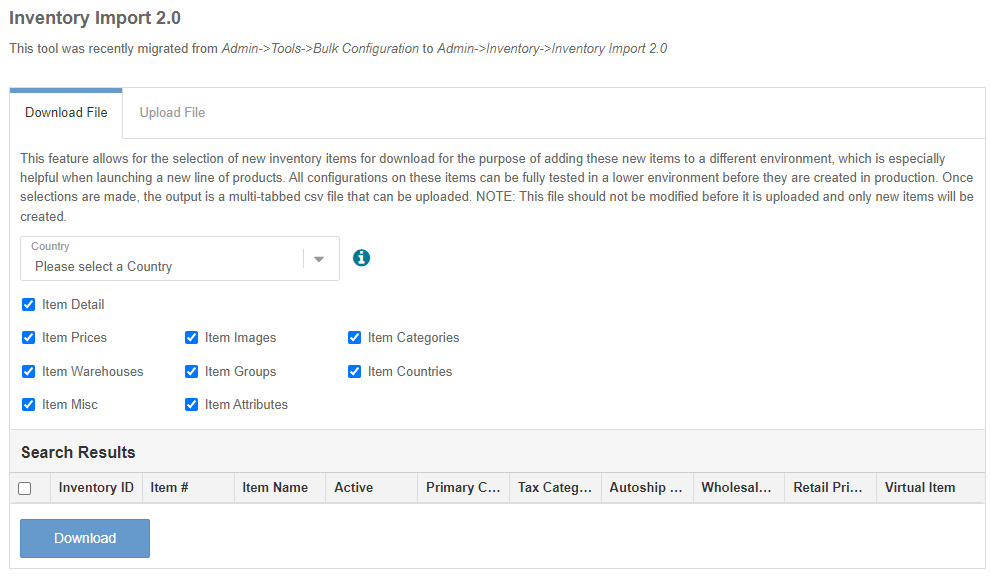
¶ Download tab
This feature allows for the selection of new inventory items to be downloaded for the purpose of adding these new items to a different environment, which is especially helpful when launching a new line of products. All configurations on these items can be fully tested in a lower environment before they are created in production. Once selections are made, the output is a multi-tabbed xlsx file that can be used on the uploaded tab.
¶ Upload tab
This upload will process an excel file (.xlsx) of current or new inventory. For the proper file format, please use the download tab. Inventory is updated in real-time as the file is parsed. If an error occurs or the browser window is closed midway, then all inventory items processed up to that point will already be saved in the system.
Select a valid .xlsx file using the format from the download tab.
¶ Import File
To create an import file, you must use download tab first to create a file in the correct format.
Since inventory setup is based on country, you must select the country first. This will populate the Search Results section with all of the configured inventory for that country. There is a Download button at the very bottom of the page.
In the search results, you must check at least one item to create a download file. The top checkbox in the header row will check all items.

Example file:
bulk_configuration_inventory_2024-10-22_14-21-28.xlsx
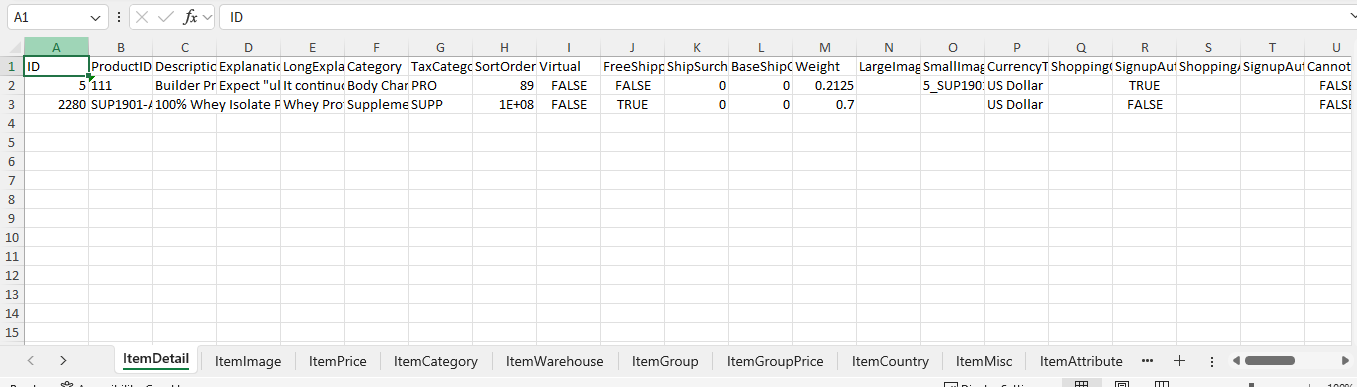
Please make note of all of the tabs on the bottom of the XLSX file.
On the Import tab there are options to control what will happen when processing the file.
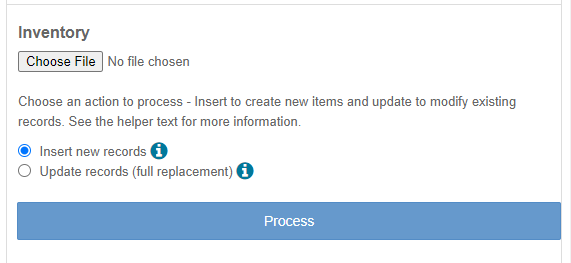
¶ Insert New Records
Insert new records is designed to create new items. It will only work on the items in the main item detail tab if an item does not exist. All child records/tabs (price, warehouse, etc.) are added to the newly created item. Everything is added as new information and no existing information is modified or removed.
¶ Update records (full replacement)
Update records is designed to modify existing records. The items in the Item detail tab will update fields on the existing item and can only work if the item already exists. All existing child records (price, warehouse, etc.) will be removed and replaced with the contents of the tabs of the upload file.